Getting Started with Electronic Chart Navigation
qtVlm Training Mode Install on iOS devices (iPhone or iPad)
( Mac or PC Computer Instructions )
For electronic chart navigation, we recommend the use of qtVlm, which we describe in the Starpath Glossary. It is state of the art for navigation and weather. It is free for Mac or PC computers, which we feature in our online courses, but there are popular versions for iOS and Android that sell for $49 in the respective App Stores. Starpath works closely with qtVlm, but we do not have a financial interest in this product. We recommend it because we believe it is the best suited for learning and mastering electronic chart navigation. We also offer support on the mobile versions in our online courses.
qtVlm, like any sophisticated navigation and weather app, has a lot of configuration options and standard locations for storing charts, tides and current data, weather data, and so. Likewise there are many choices of screen layout, colors, fonts, and more.
To expedite getting started with the training, we have created a way for students to access a "Training Mode" install option that makes the initial set up configuration we recommend, along with providing a set of training charts, US tides and currents, several sample GRIB files to see how weather forecasts work, along with a few other training features. This remains the full version of the program, and users can revert to the default configuration at any time, removing all changes made in the Training Mode.
The training mode is achieved as explained below, followed by video demos of the process.
Step 1. From the App Store, download and install the latest version of qtVlm. There is no charge to download the app, which is a limited version. We will then need to upgrade to the paid version for the training mode and the other sophisticated functions of the app. When you open the main menu in the bottom right of the screen, you will see several functions grayed out, which is a sign that the full version has not been activated.
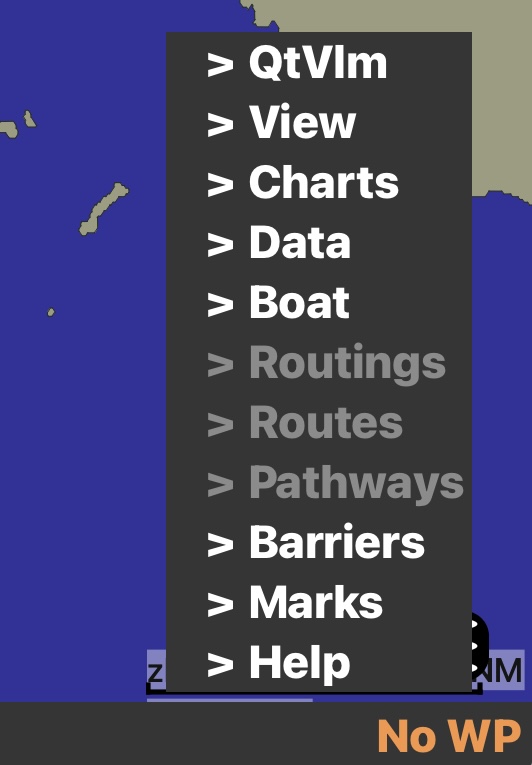
Step 2. Purchase the full version by clicking the top item, qtVlm, then choose Purchase full version or if you had purchased it on a different device using the same Apple ID, then you can press Activate complete version. This operation activates the above grayed out items and other features. Then close the qtVlm app. Now we are ready to install the Training Mode.
( Note that we must always be signed in on the Apple ID we used to buy the app, but then it will work on any number of devices that share that Apple ID. )
Step 3. Next we download a small text file here (called training.dat) and send it to qtVlm; then when we reopen qtVlm, the Training Mode will be an item in the above menu. Here is a link to the file, followed by specific instructions on how to use it.
training.dat
For now, it is important to use the Chrome browser on your iOS device. In principle this should be doable with Safari, but I have not figured out the best way yet.
Viewing this page with Chrome, double click the link above and it will do two things. First it shows that this file is just a simple line of text stating where the training mode data are stored and what the latest version is. Plus, looking at the botom of the page, you will see an option to download training.dat.
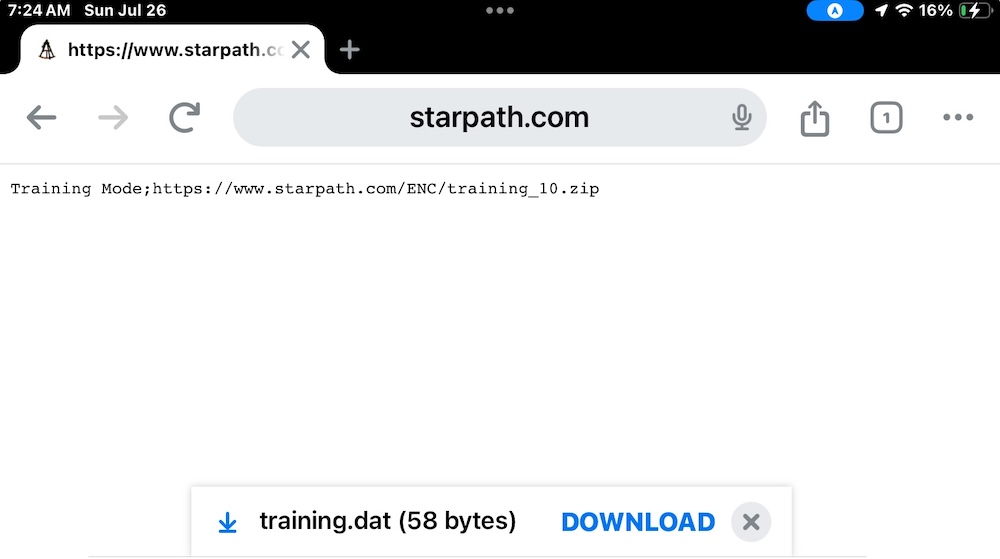
Press DOWNLOAD... and then press OPEN IN... then slide the row of icon options at the top to the left until you see qtVlm, and then press that icon.
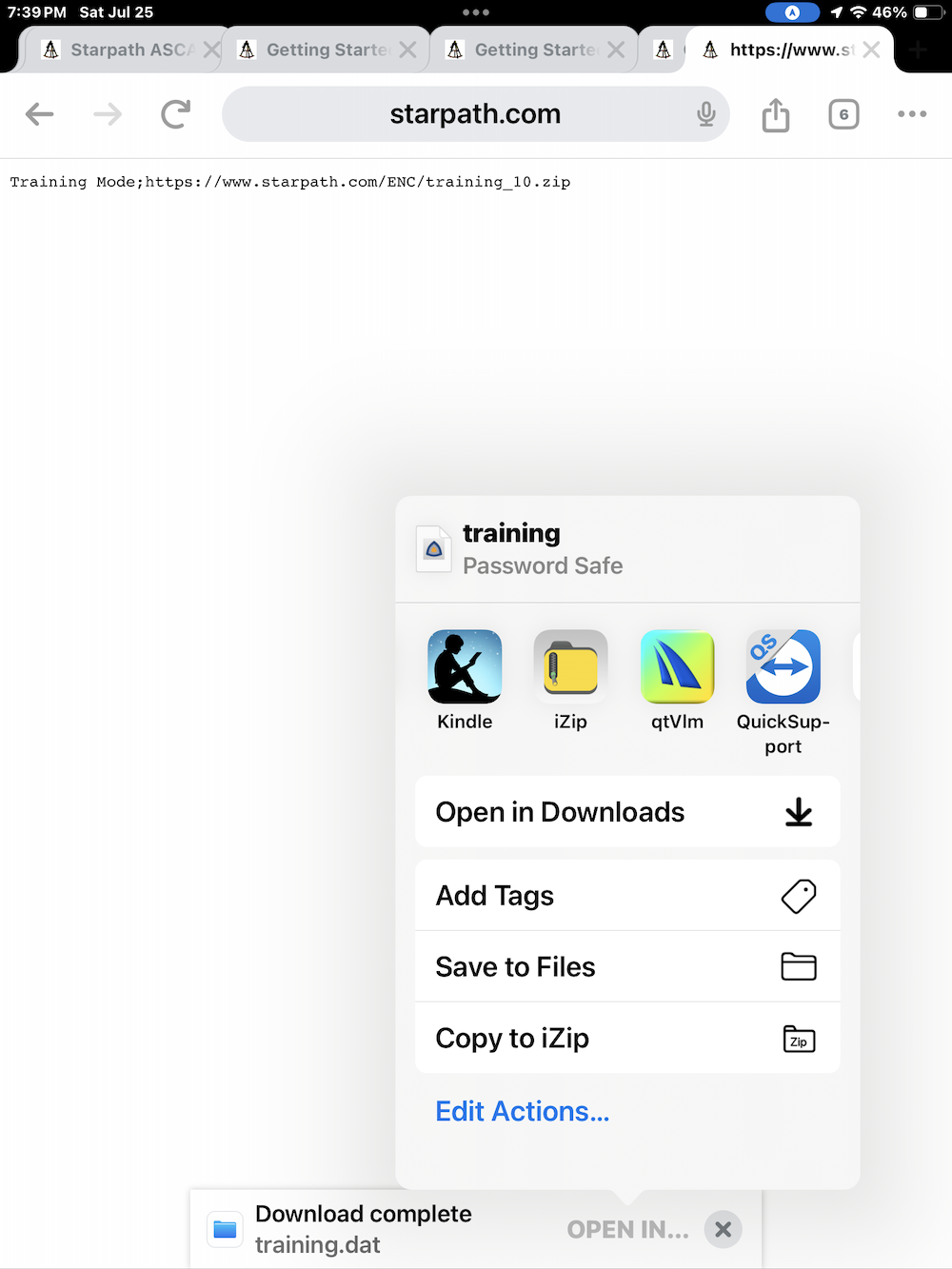
That will put the file in the right place and we are done.
Step 4. Reopen the program, and you should see a new item in the qtVlm main menu (bottom right), called "Training Mode." Click that menu item and choose "Download and Activate." Then proceed on to other instructions and videos on getting started with its functions.
NOTES:
1. If you update qtVlm to latest version, which is always a good idea, it will not affect the training mode, nor other work you have done inside or outside of the training mode.
2. If we make a new version of the training mode package, then you can save all of your work with the Export function (menu qtVlm/Export data) then import it back to the new training mode install. Any data you have stored in the base program are not affected by training mode updates
Resources for Mac and PC
Interactive Cheat Sheet Interactive "How to" instructions for specific tasks
Playlist of tutorial videos (Several on getting started)
Training Mode Overview: What it does and what it contains (22 min video) or Blog Post text version
Demos of all plotting exercises we do in the coastal nav course.
The official Manual This is an extensive, illustrated document that covers some details not in the above sources.
If questions arise, please post them in the Student Discussion Forums.
________________________
History of training packs: training_xx.zip
06: Oct 15, 2025. The basic mode explained in the video above.
07: Feb 26, 2026. Updated to new ENC in the training region, plus new NOAA harmonics.
08: Mar 16, 2026. Updated charts to latest build
09: Apr 01, 2026. Another chart update as NOAA has now completed the scale band 4 set over our training region.
10: Jun 20, 2026. Fixed
a bug that affected charts in iOS devices.